 Richard
Keeping your computer fast, stable, and clutter-free doesn’t have to cost money or require advanced technical skills. Over time, even the best PCs slow down due to unnecessary files, leftover software components, and background processes that quietly eat up system resources. The good news is that you can regain control and boost performance using reliable tools like Advanced SystemCare and IObit Uninstaller—no complicated setup required.
Why Your PC Slows Down Over Time
Every time you install or uninstall a program, your system stores small bits of data—temporary files, registry entries, cached data, and more. While each file may seem insignificant, they quickly accumulate. Add in startup programs, unused apps, and outdated software, and your once-speedy PC can start to feel sluggish.
Many users don’t realize that simply deleting a program isn’t enough. Standard uninstallers often leave behind residual files and settings, which continue to occupy space and sometimes even cause conflicts with new installations.
What a Cleaner and Uninstall Utility Does
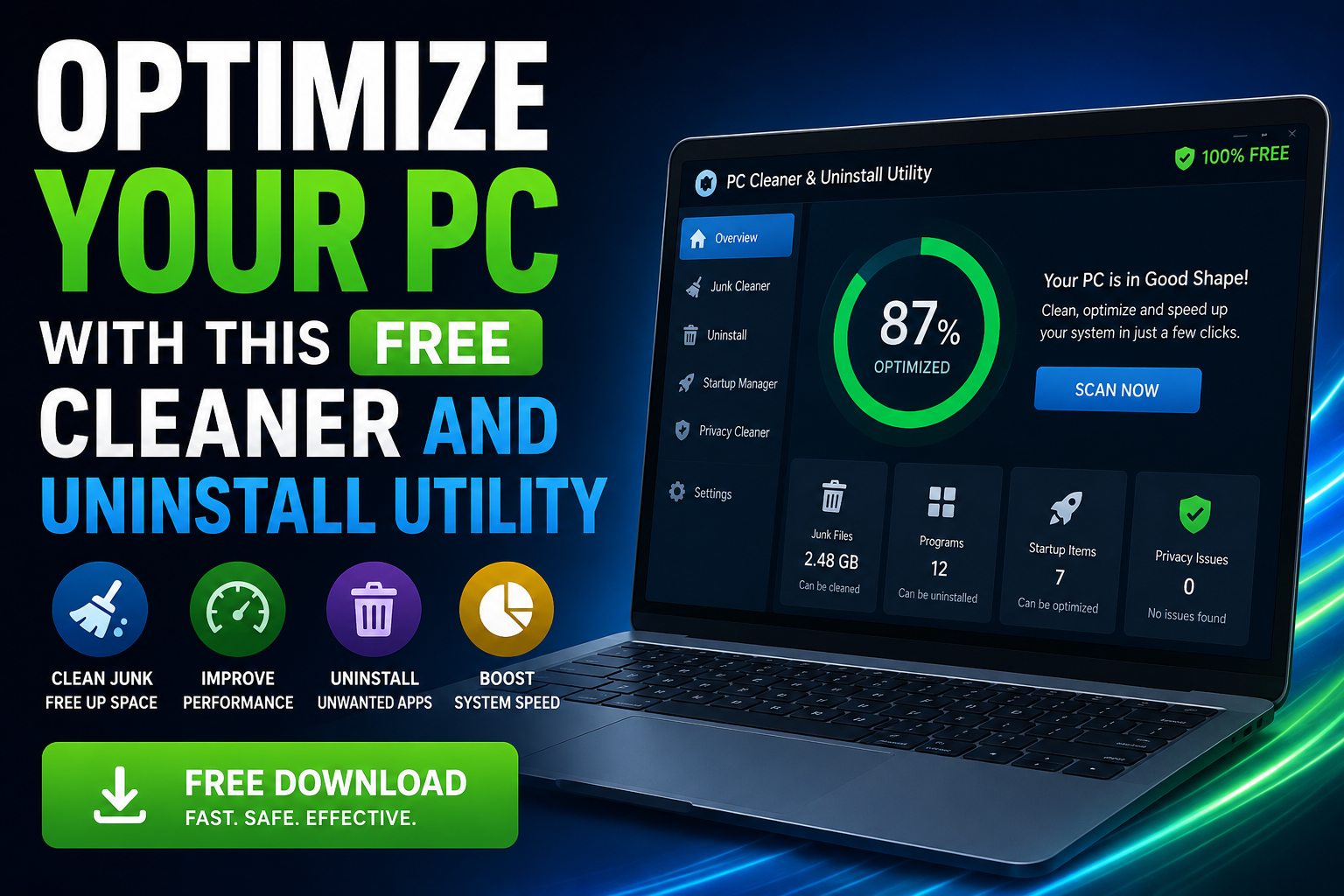
A PC cleaner free and uninstall tool combines two powerful functions into one convenient package. Tools such as Advanced SystemCare help clean and optimize your system, while IObit Uninstaller ensures programs are removed completely without leaving behind unwanted traces.
1. System Cleaning
System cleaning software like Advanced SystemCare scans your computer for junk files such as temporary data, browser cache, log files, and system leftovers. Removing these files frees up storage space and can noticeably improve system responsiveness.
2. Advanced Uninstalling
Unlike the default Windows uninstaller, IObit Uninstaller removes not only the main program but also leftover files, registry entries, and hidden folders. This ensures a complete cleanup and prevents clutter from building up over time.
Key Benefits of Using a Free Utility
Improved Performance
By clearing unnecessary files and disabling unwanted startup items with tools like Advanced SystemCare, your PC can boot faster and run smoother.
More Storage Space
Junk files can consume gigabytes of space. A good cleaner helps reclaim that storage for more important use.
Better System Stability
Leftover files and broken registry entries can cause errors. Cleaning them reduces crashes and software conflicts.
User-Friendly Interface
Most free tools are designed for everyday users. Both Advanced SystemCare and IObit Uninstaller offer simple interfaces that allow users to scan, review, and clean their systems with just a few clicks.
Features to Look For
Not all utilities are created equal. When choosing a free cleaner and uninstall tool, look for these essential features:
- Deep Scan Capability: Ensures no leftover files are missed
- Batch Uninstall: Remove multiple programs at once with tools like IObit Uninstaller
- Startup Manager: Control which apps launch when your PC starts
- Browser Cleaning: Clears history, cookies, and cache
- Real-Time Monitoring (optional): Alerts you to unnecessary file buildup
- Performance Optimization: Features offered by Advanced SystemCare to boost overall system speed
How to Use It Effectively
To get the best results, follow a simple routine:
Step 1: Run a Full Scan
Start by scanning your system for junk files and unnecessary data using Advanced SystemCare. Review the results before deleting anything important.
Step 2: Remove Unused Programs
Identify applications you no longer need. Use IObit Uninstaller to remove them completely along with leftover files.
Step 3: Clean Leftover Files
After uninstalling, run a secondary scan to eliminate any residual files and registry traces.
Step 4: Optimize Startup Programs
Disable apps that don’t need to run at startup. This can significantly reduce boot time and improve overall responsiveness.
Step 5: Repeat Regularly
Perform a cleanup once every few weeks to maintain peak performance.
Common Mistakes to Avoid
While these tools are safe and helpful, there are a few things to keep in mind:
- Don’t delete everything blindly: Always review scan results
- Avoid removing system-critical files: Stick to recommended items
- Don’t overuse registry cleaning: Only clean when necessary
- Download from trusted sources: Avoid fake or bundled software
Is Free Really Enough?
For most users, free tools like Advanced SystemCare Free and IObit Uninstaller Free are more than sufficient. They provide all the essential features needed to maintain a healthy system. Paid versions may offer extras like automatic cleaning or advanced monitoring, but they’re not required for basic optimization.
Final Thoughts
A slow PC doesn’t mean it’s time to buy a new one. With the right free cleaner and uninstall utility, you can breathe new life into your system in just a few minutes. Combining a system optimizer like Advanced SystemCare with a dedicated removal tool like IObit Uninstaller helps keep your computer clean, organized, and running efficiently.
Think of it like tidying up your workspace—when everything is clean and organized, you can work faster and more efficiently. Your PC is no different. By taking a proactive approach and using the right tools, you can keep your system running like new without spending a single rupee.